Ergonomic Projector-Monitor Hybrid Setup for Limited Desks
By Mina Okafor • 30th Nov
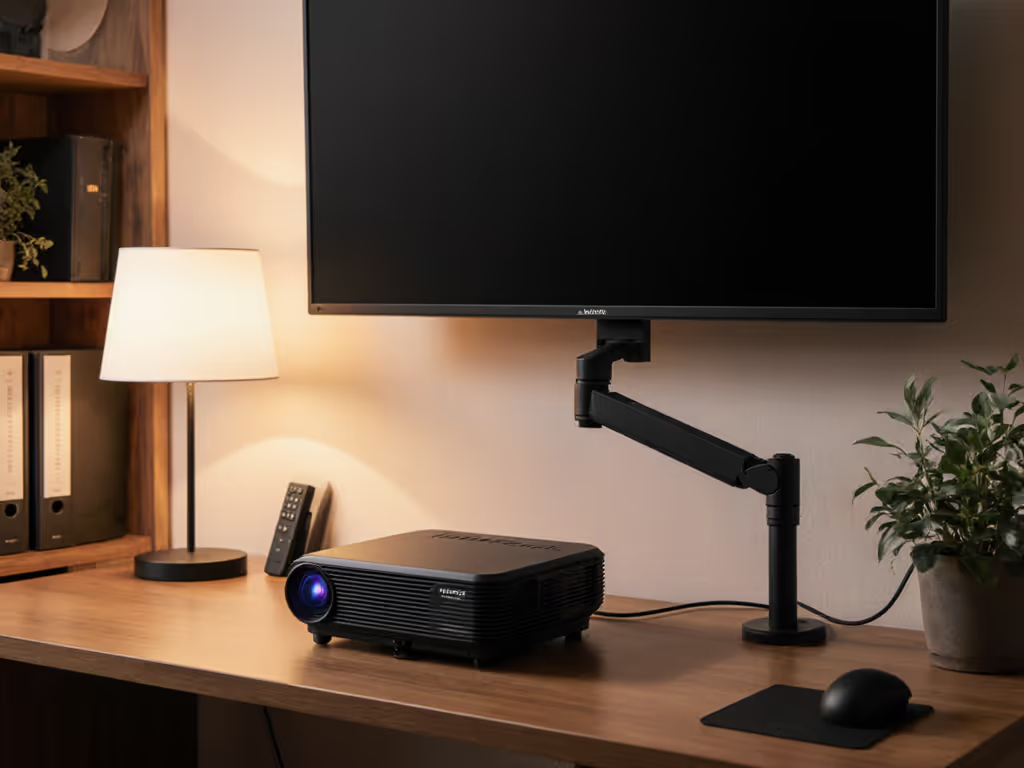
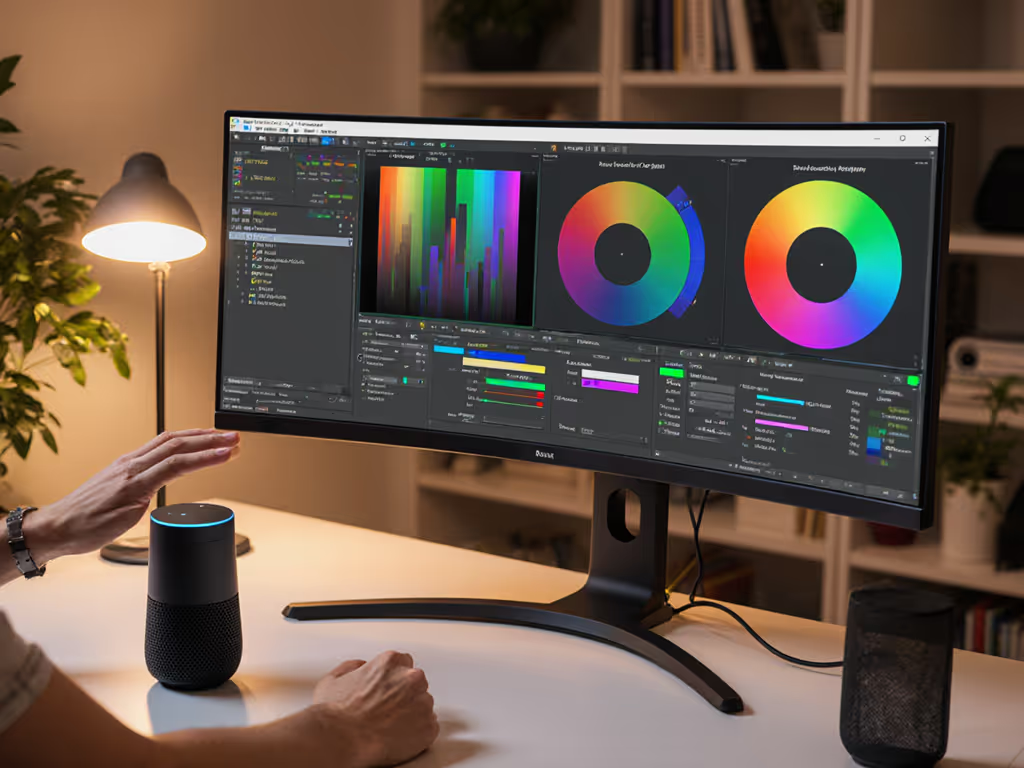
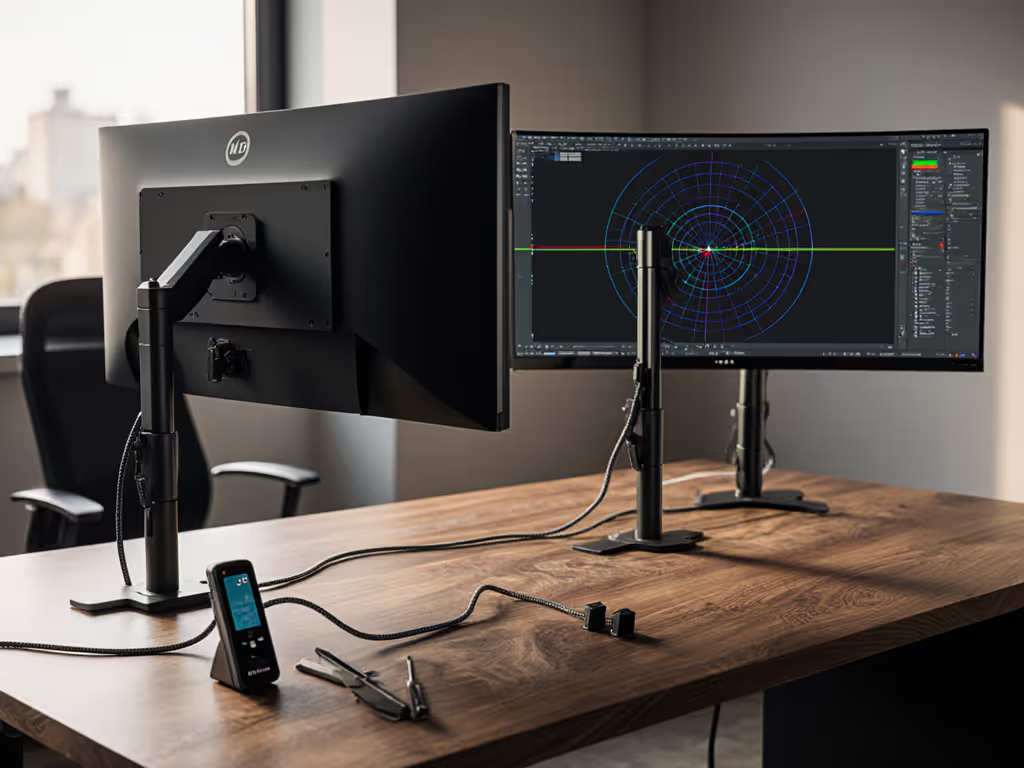
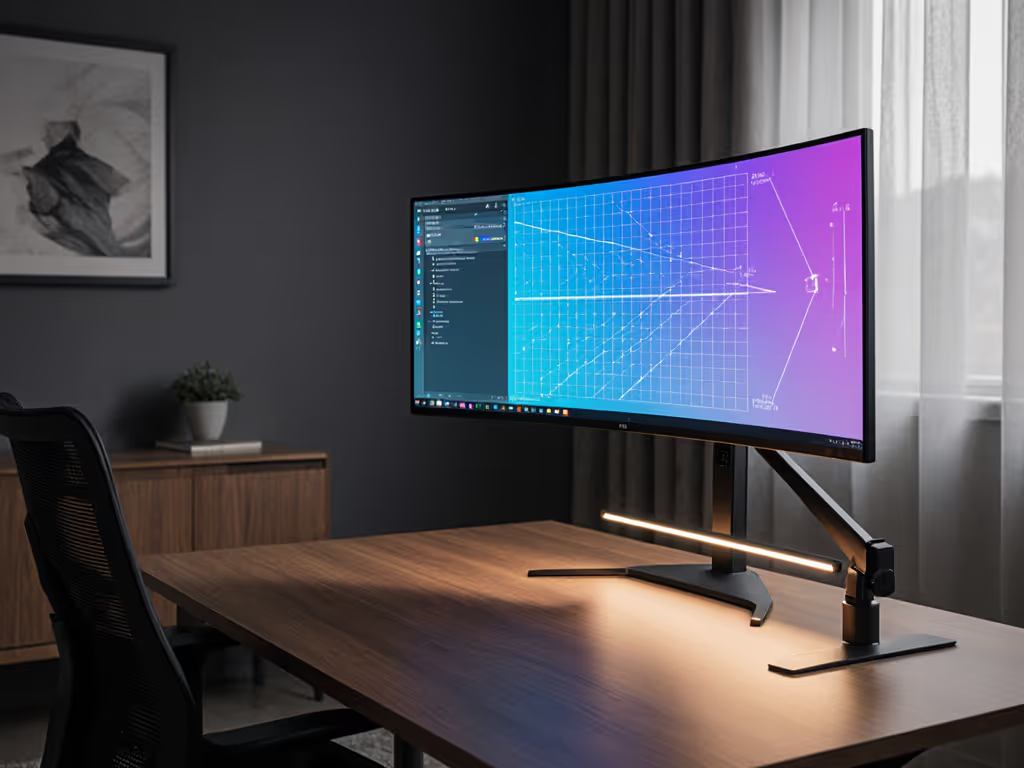
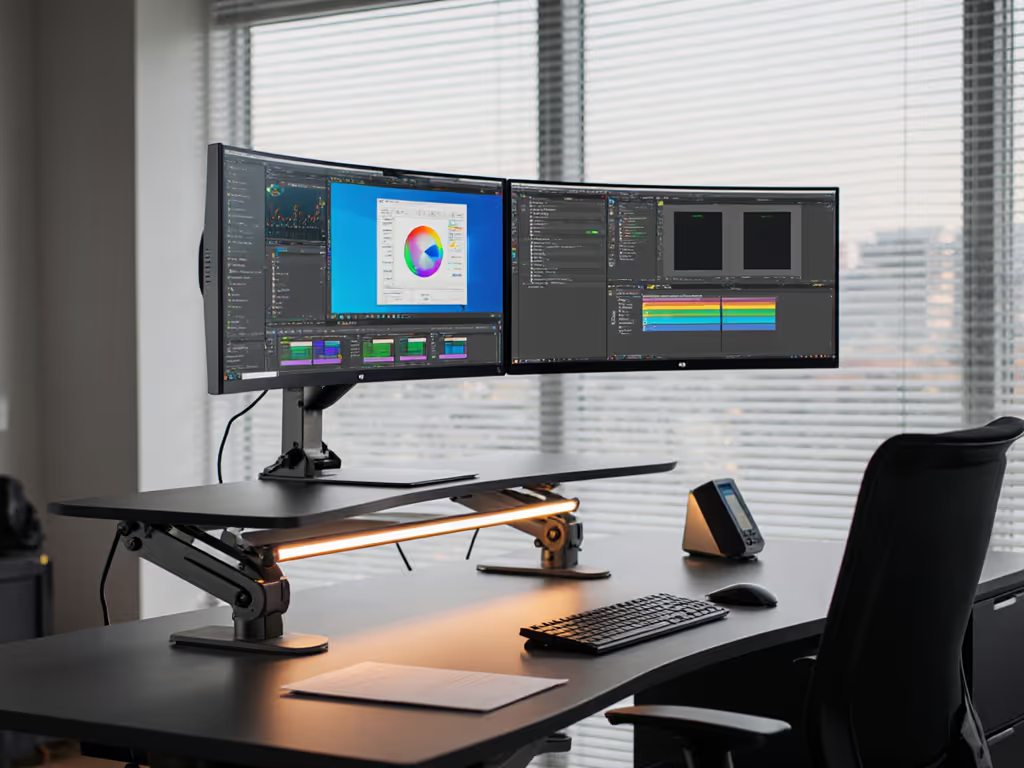
When your workspace footprint shrinks but your productivity demands grow, a projector-monitor hybrid setup becomes an elegant solution that transcends conventional dual display limitations. This dual display projection approach (thoughtfully integrating a traditional monitor with a precisely positioned projector) creates an extended visual field without consuming precious desk real estate. If desk surface is at a premium, compare wall vs desk mounts to reclaim space for your primary display. In my years as a human factors practitioner, I've found that comfort measured in millimeters beats power measured in watts, especially when crafting solutions for constrained environments where every inch matters.
Understanding Your Workspace Constraints
Before purchasing any equipment, conduct a thorough assessment of your physical workspace using the following metrics:
- Desk depth measurement: Record your available depth from the back edge to front edge (minimum 20 inches/51 cm recommended for standard monitor placement)
- Viewing distance: Measure from your seated eye position to your primary monitor location
- Ambient lighting conditions: Note window placement, overhead lights, and potential glare sources
- Standing desk articulation: If using a height-adjustable desk, measure the full range of motion to ensure your solution accommodates all configurations
For apartment dwellers or those with compact home offices, I recommend maintaining a primary workspace within a 16-24 inch (41-61 cm) depth. If you plan to wall-mount the primary display, confirm VESA mount compatibility first. This constrained zone keeps your critical interactions within your immediate reach arc, where your arms can move comfortably without shoulder strain.
Ergonomic Principles for Dual Display Projection
Posture first, furniture second. For an at-a-glance checklist, follow our ergonomic monitor height guide. This guiding principle shapes every recommendation I make. When implementing an extended workspace projection solution, your primary monitor must remain directly in front of you at eye level, while the projected display should extend your visual field to the side or slightly above.
Follow these body-first guidelines:
- Primary monitor positioning: Keep your main monitor directly in front of you at eye level when your gaze is slightly downward (approximately 10-15 degrees)
- Projected workspace placement: Position your secondary projected content to the left or right at approximately 30 degrees from your primary line of sight, with the bottom edge of the projection no higher than eye level
- Optimal focal distance: Maintain 20-30 inches (51-76 cm) for your primary monitor and 40-60 inches (102-152 cm) for the projected surface
Comfort is a performance spec. Good ergonomics compounds attention and accuracy over extended work sessions.
Early in my career, I struggled with mismatched displays that compromised both my posture and workflow. The solution wasn't more hardware (it was smarter positioning that respected my body's natural movement patterns). Your eyes should travel effortlessly between displays without requiring head rotation beyond 35 degrees, which prevents the neck strain that develops after hours of awkward viewing angles.
Strategic Hardware Placement
The projector itself must be positioned outside your immediate workspace but within optimal projection distance. To keep cords unobtrusive in tight spaces, use the strategies in our monitor cable management guide. Follow these precise placement rules:
- Mounting height: Position the projector lens at or slightly below your seated eye level
- Projection distance: Calculate using your projector's throw ratio (typically 1.5:1 for standard projectors), for a 60-inch diagonal image, you'll need approximately 7.5 feet (2.3 m) of throw distance
- Offset positioning: Place the projector to the side of your seated position rather than directly behind you to minimize obstruction
For renters or those avoiding permanent modifications, consider a compact projector like the Epson Home Cinema 980 that can sit on a nearby shelf or secondary surface. Its 12.2 x 11.1 x 4.2 inch footprint and 6.8-pound weight make it suitable for temporary placement on bookshelves or wall units without requiring mounting hardware.
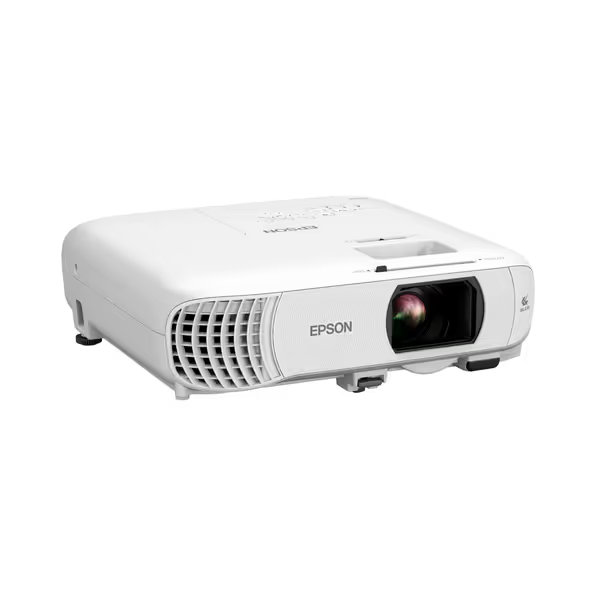
Epson Home Cinema 980 Projector
Bright 1080p projection for home theater, gaming, and outdoor use.
$699.99
Brightness4,000 Lumens (Color & White)
Brightness4,000 Lumens (Color & White)
Pros
Vibrant 1080p picture, even in daylight.
Fast processing for smooth action & gaming.
Flexible connectivity with dual HDMI and USB power.
No 'rainbowing' common with other projector tech.
Cons
Built-in speaker quality receives mixed reviews.
Customers praise the projector's picture quality, build, and brightness, noting it can be seen in full daylight. They find it good value for money and appreciate its portability, with one mentioning it's perfect for outdoor screening.
Customers praise the projector's picture quality, build, and brightness, noting it can be seen in full daylight. They find it good value for money and appreciate its portability, with one mentioning it's perfect for outdoor screening.
Effective Monitor-Projector Calibration
The technical alignment of your monitor-projector calibration must serve ergonomic requirements, not just technical specifications. Follow this sequence:
- Primary display setup: Configure your main monitor as your "command center" with essential applications
- Secondary display configuration: Designate the projected surface as your "reference space" for supplementary content
- Display arrangement: In Windows Display Settings or macOS System Preferences, position the virtual displays to match their physical arrangement
When dragging windows between displays, the movement should follow your natural eye path, not force awkward head movements.
During presentation display integration, ensure your projected content maintains proper scaling. If text appears too small on the projected surface, adjust the resolution scaling in your operating system rather than leaning forward to compensate. This maintains neutral spine alignment while allowing quick reference to secondary materials.
Workflow Integration for Space Efficiency
The true value of your projector-monitor hybrid setup reveals itself in daily use. Implement these workspace habits:
- Primary task zone: Keep your keyboard, mouse, and primary monitor within your immediate reach arc (the area where your forearm rests comfortably on the desk)
- Reference zone: Position projected content in your peripheral vision zone where you can glance sideways without head movement
- Transition protocol: When shifting focus between displays, initiate the movement from your eyes first, followed by your head, then your torso (never lead with your neck)
For creative professionals working with immersive workspace solutions, consider projecting reference images, color palettes, or inspiration boards while keeping your primary tools on your monitor. Photographers, for instance, might display client mood boards on the projected surface while editing in Lightroom on their main display.
Lighting Considerations for Visual Comfort
Projector effectiveness depends significantly on environmental lighting conditions. Rather than battling ambient light with excessive lumens, implement these visual comfort strategies:
- Task lighting: Position downward-facing task lights that illuminate your desk surface without creating glare on either display
- Window management: Use adjustable blinds to control natural light throughout the day
- Projection surface selection: Opt for light-gray projection surfaces rather than pure white to improve contrast in moderately lit rooms
Remember that excessive brightness discrepancy between your primary monitor and projected content creates visual fatigue. Adding subtle backlighting behind your monitor can help—see the bias lighting benefits and installation tips. Calibrate your main monitor to match the ambient conditions of your projected space, typically reducing brightness to 100-120 cd/m² in typical office lighting.
Conclusion and Implementation Strategy
A well-executed projector-monitor hybrid setup transforms spatial limitations into ergonomic advantages. By prioritizing your body's natural movement patterns over conventional workspace arrangements, you create an environment where productivity and comfort coexist.
Your immediate next step: Measure your current workspace using the metrics outlined in section one, then mark your optimal primary monitor position using painter's tape on your desk. This simple exercise establishes your ergonomic foundation before any equipment selection. Once you've identified this critical zone, you can determine the appropriate projector placement that complements, rather than compromises, your posture.
As someone who aligns screens with bodies, I've seen how strategic display placement turns cramped quarters into efficient workspaces. Your productivity shouldn't be limited by square footage when intelligent positioning can expand your visual territory without expanding your desk footprint.
Related Articles