Monitor Viewing Angles: Panel-Specific Positioning Guide
By Mina Okafor • 4th Apr
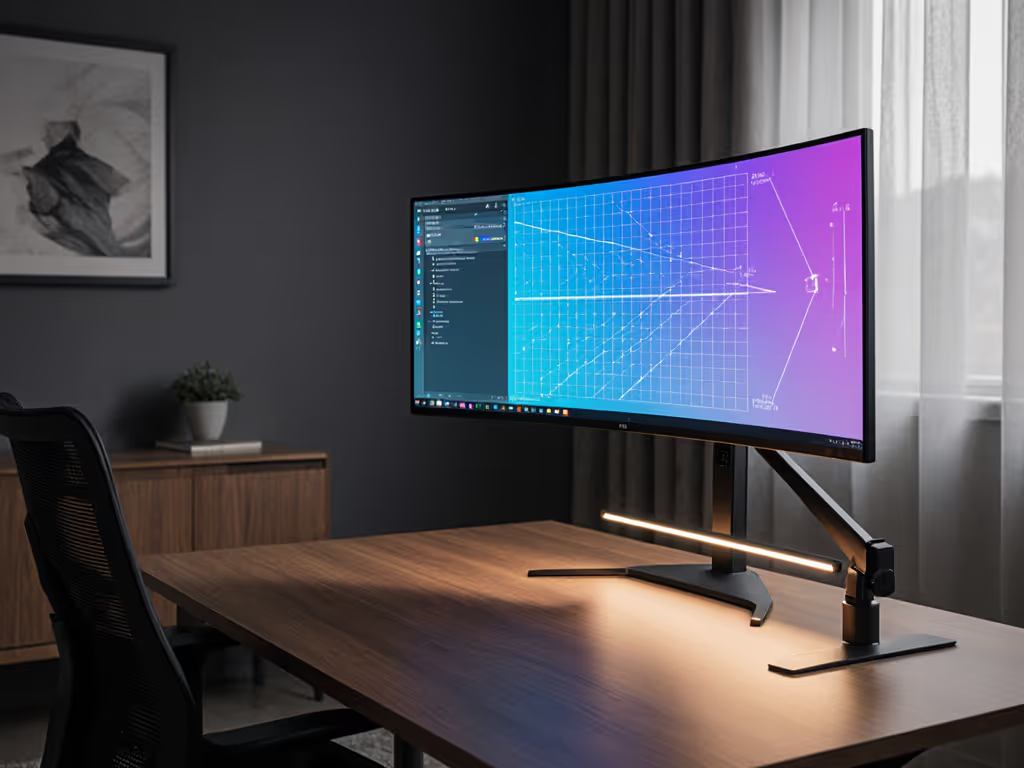
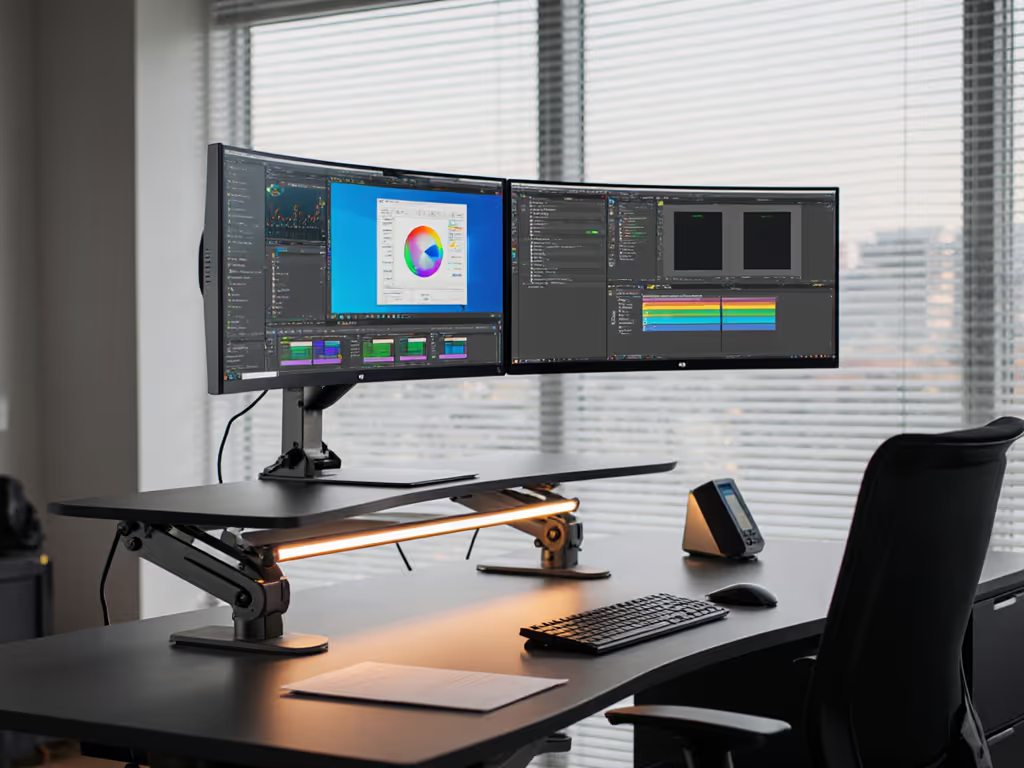
Monitor viewing angles and color accuracy panel technology are not abstract specs; they directly determine how much you can move your head and body while maintaining sharp focus, color fidelity, and comfortable neck posture. A display engineered for wide angles forgives body movement; a narrow-angle panel punishes it, forcing you into a rigid, forward-facing posture that compounds strain over hours.
The panel type underneath your monitor drives everything. IPS, TN, and VA panels each have different angular strengths, and knowing those strengths lets you position your display (and your body) for sustained comfort without sacrifice.
Why Viewing Angles Are Ergonomic Anchors
Ergonomics is not just about chair height or desk depth. It is about the entire reach arc between your eyes and your screen. When a monitor has poor horizontal or vertical viewing angles, the image degrades (colors shift, contrast flattens, brightness drops) the moment you deviate from a single, dead-center seat.
Your natural response? You lean forward. You shift your chair closer. You tilt your head to chase the "sweet spot." Each micro-adjustment chains to the next, and within days your neck, shoulders, and eyes feel the accumulated toll.
Monitors with wide viewing angles (measured in degrees both horizontally and vertically) permit what ergonomicists call neutral head posture: your ears aligned over your shoulders, your gaze meeting the upper third of the screen, your arms resting at 90°. For precise height and viewing distance benchmarks, follow our ergonomic monitor height guide. You can shift five or ten degrees without image collapse. You can look left at a secondary window without color wash-out. Your body stays where it belongs.
Early in my career, I inherited three mismatched monitors stacked high on a desk clamp. Not sure whether a clamp is right for your desk? See our clamp vs grommet vs bolt mount tests. By week two, my neck ached and my workflow slowed to a crawl, not because the monitors were slow, but because I was chasing image quality by tilting my head and leaning. Once I repositioned each display around neutral posture and tested the panel's actual viewing cone, comfort returned and so did my speed. Now I prototype every mounting choice with bodies first, hardware second.
That is the real performance metric. Comfort measured in millimeters beats power measured in watts.
Panel Types and Their Viewing Angle Profiles
Three panel technologies dominate desktop monitors. Each trades angle breadth for other qualities. Understanding those trades is the first step to positioning your display correctly.
IPS Panels: Wide Angles, Forgiving Posture
IPS (In-Plane Switching) panels deliver horizontal and vertical viewing angles around 178° on each axis. That near-symmetrical cone means you can shift considerably off-center (left, right, up, down) while color saturation, brightness, and contrast remain stable.
For ergonomics, this is liberation. With an IPS panel, you can:
- Sit slightly left or right of center without color shifting
- Tilt your head to glance at adjacent windows without image degradation
- Move your body as you type, without chasing the screen
- Share the display with someone beside you without one person seeing a washed-out image
IPS is the default choice for knowledge workers, creatives, and anyone whose job depends on color accuracy or long viewing sessions. The wide angles mean your neck and posture can be loose and adaptive.
TN Panels: Narrow Angles, Rigid Positioning
TN (Twisted Nematic) panels have notoriously tight viewing angles, often only 60° to 90° horizontally and up to 170° vertically (though that vertical spec is misleading). In practice, TN panels suffer severe color shifting and contrast loss when viewed from the side.
The ergonomic cost is steep. With a TN panel, you must sit almost dead-center. Any horizontal shift (a glance left, a lean to grab a notebook) triggers color wash-out and brightness collapse. Your body locks into a narrow cone of tolerance. Over eight hours, that rigidity translates to neck tension and eye fatigue.
TN panels persist because they are cheap and fast (low latency, high refresh rates for gaming). But if you spend most of your day in front of the monitor (not just gaming) TN is a poor ergonomic bargain. The narrow angles force you to hold your head in place rather than allow your head to move naturally.
VA Panels: The Middle Ground
VA (Vertical Alignment) panels occupy the middle ground: viewing angles typically range from 170° horizontally to 160° vertically. They deliver better contrast than IPS and maintain color better than TN across a reasonable angular range.
VA is the pragmatic choice for mixed work (a bit of gaming, a bit of productivity, occasional color work). The viewing angles are wide enough to forgive moderate head movement, yet maintain the contrast punch that gamers and video editors value. Positioning a VA display follows the same loose, adaptive posture logic as IPS, though with slightly tighter margins for extreme angles.
How to Position Your Monitor Based on Panel Type
For IPS Panels: Embrace Flexibility
- Set your chair to a neutral height. Elbows bent 90°, forearms parallel to the desk.
- Position the monitor 20-26 inches (50-66 cm) from your eyes. Arm's length, roughly.
- Align the top of the screen just below eye level. Your gaze should drift down slightly to the upper third of the image, a posture that invites gentle neck alignment.
- Do not center yourself on the monitor. Sit slightly to one side, or angle the display 5-10° inward. IPS angles are wide enough to accommodate this without loss of image quality. This micro-variation keeps your neck from locking into one rigid position.
- Tilt your head freely. Test your IPS panel by glancing left and right. If colors remain true, your panel is delivering on its promise, and your body can move.
For TN Panels: Narrow the Cone
- Position yourself directly in front of the monitor. Horizontal centering is non-negotiable with TN.
- Keep viewing distance at 20-24 inches (50-61 cm). Closer than IPS, to reduce vertical angle drift.
- Angle the monitor slightly downward (5-10° tilt) to keep your viewing angle closer to the panel's horizontal axis. Vertical angle loss on TN is real; favor the horizontal.
- Use a monitor arm with fine tilt adjustment. Because your margin for error is small, the ability to dial in precise angle is essential.
- Avoid secondary glances. If you need to look elsewhere frequently, a TN panel forces an uncomfortable workflow. This is the core ergonomic argument against TN for general work.
For VA Panels: Balanced Tolerance
- Position yourself at the center or slightly off-center. VA angles are wide enough to allow modest deviation.
- Set viewing distance at 20-26 inches (50-66 cm). Match the IPS range for consistency.
- Align the top of the screen just below eye level, as with IPS.
- Tilt or swivel the display by 5-15° without fear of contrast collapse. Test by moving your head; VA should tolerate this gracefully.
- Treat VA as a middle path. It forgives more than TN but offers slightly tighter angles than IPS. Adjust your posture accordingly.
Testing Your Setup
Specifications are one thing; reality is another. After positioning your monitor, run a simple test:
- Sit in your normal work posture. Eyes forward, relaxed neck.
- Glance left 10-15°. Do colors remain consistent? Does brightness hold?
- Tilt your head up and down (eyes still on-screen). Does contrast flatten?
- Lean back slightly. Any image wash-out or color shift?
If your panel passes these tests, its viewing angle is adequate for your posture. To further reduce visual fatigue, explore our monitor eye health accessories guide. If you see color shift or brightness drop during normal head movement, your monitor is too narrow-angle for your workflow, or you need to reposition it to tighten your viewing cone.
Many people blame eye strain or neck tension on monitor distance or brightness. The real culprit is often a narrow viewing angle forcing your head into an unnaturally rigid position. Testing reveals the truth.
Next Steps: Align Panel, Posture, and Task
Before buying a monitor (or repositioning the one you have) decide what panel type matches your work:
- Knowledge workers, designers, video editors, anyone with 6+ hours daily on-screen: IPS is the clear choice. The wide angles support adaptive posture and reduce compounding strain.
- Gamers or fast-paced work with tight seating. VA or high-end TN can work, provided you commit to a rigid, centered posture and accept the trade-off.
- Mixed work (productivity + gaming + creative). VA offers a practical middle ground.
Once you have chosen a panel type, position your monitor using the guidelines above, then test your actual posture. Move your head. Glance around. Feel whether your body stays loose and adaptive or locks into rigidity.
Comfort measured in millimeters compounds into hours of focused, pain-free work. That is the real performance spec. Choose your panel with ergonomics in mind, position it with precision, and let your body move as it was designed to. Your attention (and your long-term comfort) depends on it.
Related Articles