Left-Handed Monitor Setup: Ergonomic Accessory Guide
By Mina Okafor • 12th Dec
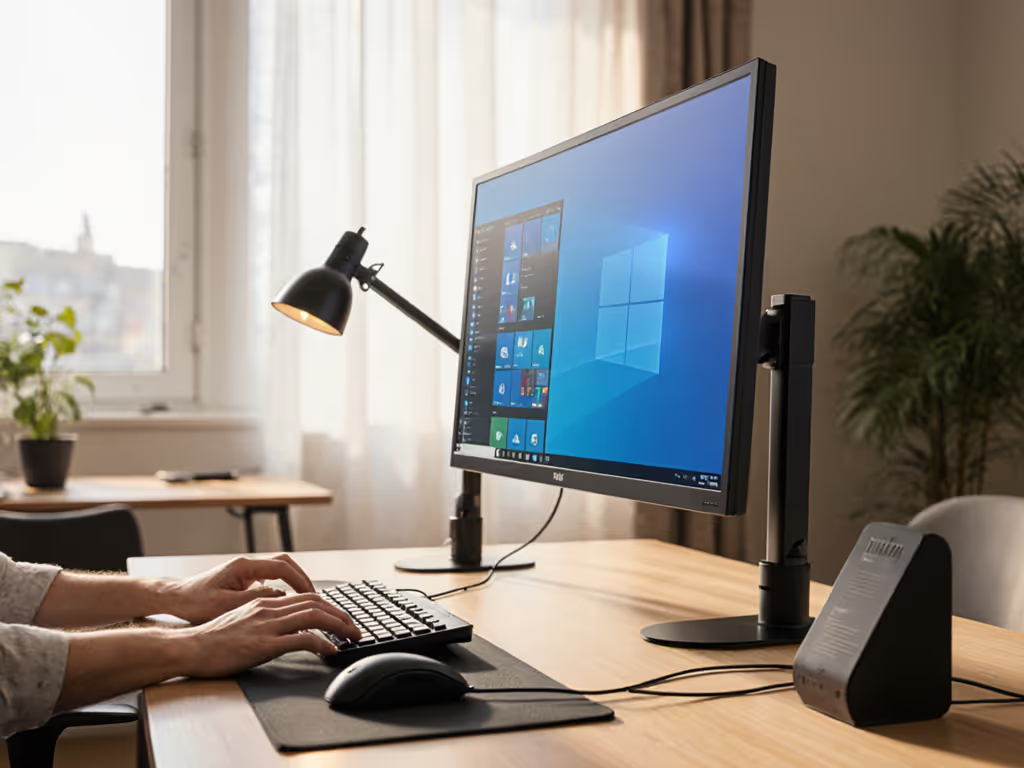
As a left-handed professional myself, I know the frustration of wrestling with a workspace designed for right-handed dominance. Your left-handed monitor setup shouldn't feel like an afterthought (it is the foundation of your daily productivity). When monitors sit askew to accommodate mouse positioning, or cables snake across your dominant workspace, something's fundamentally wrong. Early in my career, I inherited a mismatched monitor stack that played havoc with my posture until I realized: comfort is never secondary to function. Southpaw ergonomic accessories aren't niche luxuries (they are performance necessities) that transform strained workdays into sustainable workflows. Let's build a workspace that honors how your body naturally moves, not how it's supposed to move according to conventional wisdom.
Comfort measured in millimeters beats power measured in watts.
Understanding Asymmetric Ergonomic Design
Right-handed bias in workspace design creates invisible friction that accumulates throughout your workday. Consider these subtle but significant asymmetries:
- Mouse reach requirements differ for lefties, requiring repositioned monitors
- Natural arm swing follows different trajectories when your dominant hand leads
- Document viewing angles shift when your writing hand occupies different space
- Cable pathways fight against your dominant-side workflow patterns
The Left-Handed Field of View
Your monitor shouldn't sit dead center as if you're aiming a rifle, it should float within your natural focal arc. For detailed positioning cues and neck-saving tips, see our ergonomic monitor height guide. For left-handed users, this means:
- Primary monitor positioned 15-30 degrees to your right (not directly ahead)
- Screen top edge at or slightly below eye level (5-10 cm / 2-4 inches lower for bifocal wearers)
- Total viewing distance of 50-66 cm (20-26 inches) for standard displays
This asymmetric positioning reduces neck rotation while keeping your mouse within your dominant side's comfortable reach arc. Remember: your monitor should serve your body's natural asymmetry, not force symmetry where none exists.
Neutral Posture Mapping for Southpaws
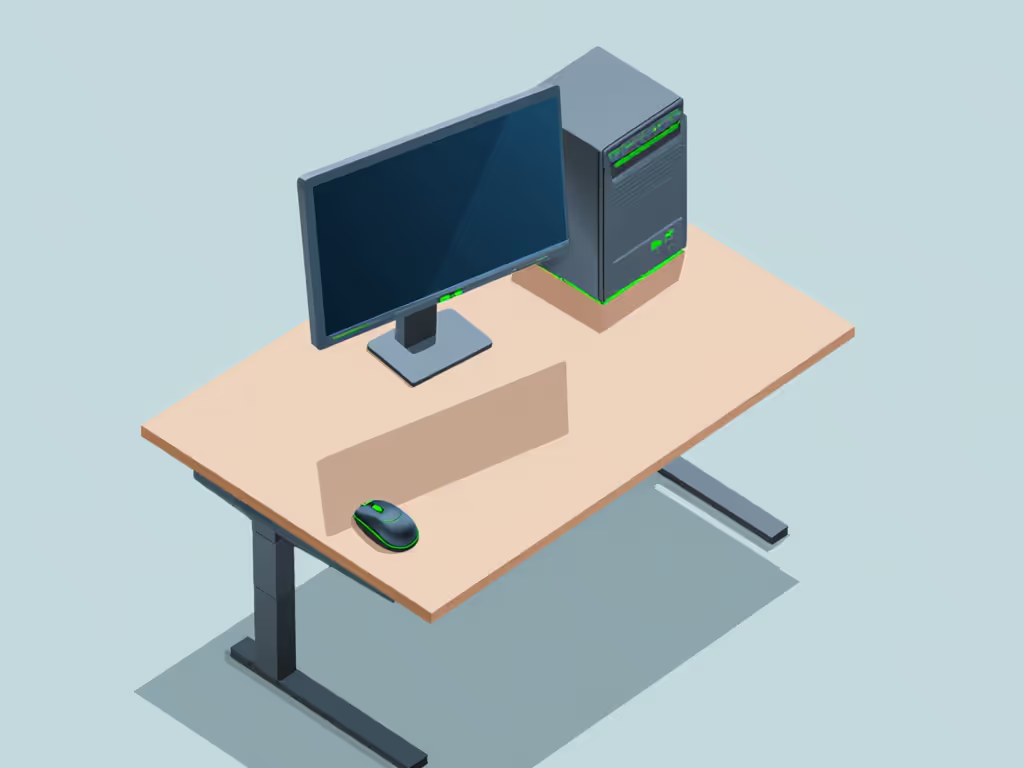
Don't try to mirror right-handed setups. That is where most left-handed ergonomics go wrong. Instead, map your natural resting positions:
- Sit comfortably with your left hand resting on your mouse
- Note where your right hand naturally falls (this is your keyboard zone)
- Identify your natural gaze point without twisting your neck
This creates your asymmetric ergonomic design baseline. Your monitor should sit where your eyes naturally fall when your dominant hand is engaged with your mouse, typically slightly right of center. Small deviations from "ideal" center positioning actually create better ergonomics for left-handed users by respecting natural posture tendencies.
Step-by-Step: Building Your Left-Handed Monitor Setup
Step 1: Position Your Monitor Relative to Your Dominant Hand
DO THIS: Position your primary monitor so its center point aligns with your mouse position, not your body center. For left-handed users, this means:
- Primary screen shifted right by 15-20 cm (6-8 inches)
- Screen maintained at arm's length (50-66 cm / 20-26 inches from eyes)
- Viewing angle 15-30 degrees below horizontal (natural downward gaze)
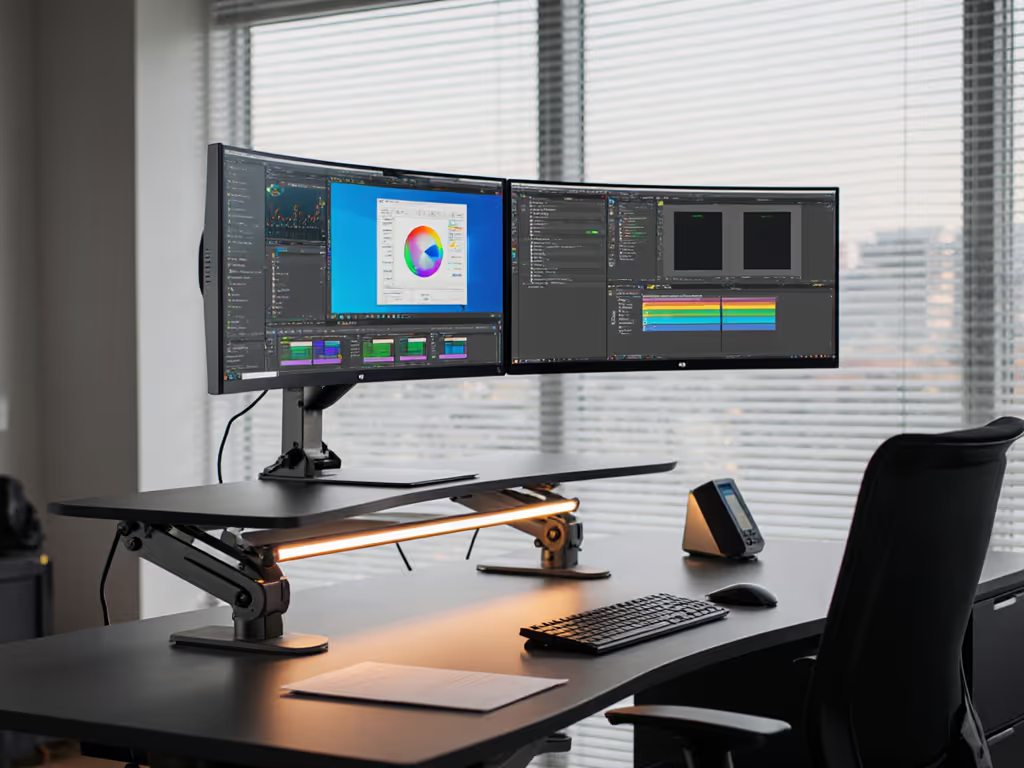
For dual monitor setups common among developers and creatives:
- Primary monitor positioned for left-hand mouse access
- Secondary monitor angled toward you at 30-45 degrees
- Center of both screens should create a concave curve facing your body
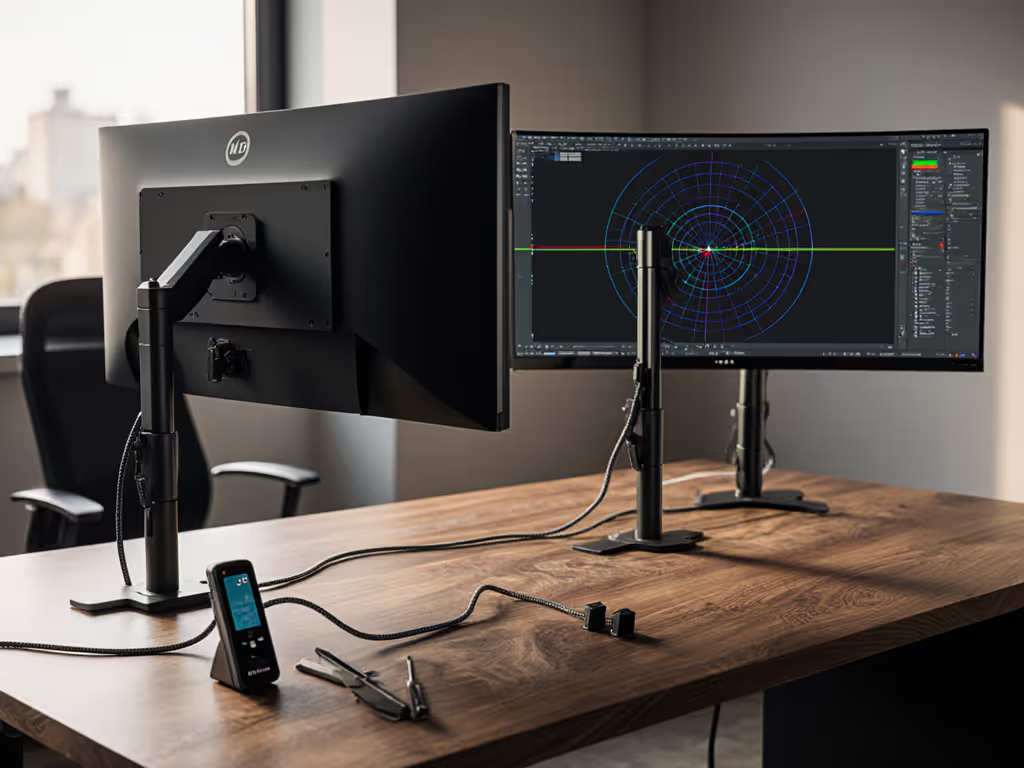
This positioning eliminates the constant neck rotation that plagues left-handed users in standard setups. For two-display layouts, follow our dual monitor arm setup guide for optimal angles and spacing. Your head stays centered while your eyes naturally scan rightward to your primary screen.
Step 2: Select the Right Monitor Arm for Lefties
Standard monitor arms assume right-handed positioning, so look for these left-handed specific features:
- Extended left-side clearance (at least 25 cm / 10 inches beyond clamp)
- 360-degree rotation capability for fine-tuning screen angles
- Independent height adjustment (not just tilt)
- Cable routing channels on both sides
When mounting your monitor arm: Choosing between clamp, grommet, or bolt-through? See our clamp vs grommet vs bolt guide to pick the most stable option.
- Position the clamp toward the right side of your desk (creating space for left-handed workflow)
- Extend the arm fully leftward before attaching your monitor
- Set height so screen top aligns with your seated eye level
- Rotate screen slightly rightward to create your asymmetric viewing angle
Pro tip: Test your monitor arm positioning for lefties by placing your left hand on the mouse and checking if you can view your entire screen without neck rotation. If you're tilting your head, the screen is too far right or too high.
Step 3: Optimize Keyboard and Mouse Layout
Your mouse shouldn't feel like an afterthought, it is your primary tool. Create a dedicated left-zone:
- Mouse placement: Immediately adjacent to your body, not stretched forward
- Keyboard position: Shifted right by 10-15 cm (4-6 inches) to create mouse space
- Number pad: Detached and placed on the left side (if using one)
For health-focused southpaw setups, consider:
- Ergonomic keyboards with detachable number pads
- Left-handed mice with thumb buttons positioned for natural left-thumb access
- Trackballs that reduce wrist rotation (especially beneficial for lefties)
Remember: your dominant hand should never cross your body mid-task. This rule alone prevents most repetitive strain injuries in left-handed professionals.
Step 4: Implement Left-Handed Cable Management
Left-handed users battle cable clutter in their primary workspace zone. For layout ideas and step-by-step routing, see our cable management guide. Transform your left-handed cable management from chaos to clean with these steps:
- Route power and video cables down the left side of your monitor arm
- Use adhesive cable clips to create a dedicated left-side channel along your desk
- Position your docking station under or behind your left-side monitor
- Group left-hand peripherals (mouse, headset, tablet) with a dedicated left-side hub
The goal: create a clean workspace where nothing crosses from right to left across your primary work zone. This transforms frustrating cable snags into a seamless southpaw workflow.
Step 5: Fine-Tune Lighting and Glare Control
Left-handed glare issues differ from right-handed users due to natural body positioning:
- Primary light source should come from your right side (not behind you)
- Monitor position perpendicular to windows (not angled away from your dominant side)
- Matte screen protectors reduce glare on left-side screen areas where your hand moves
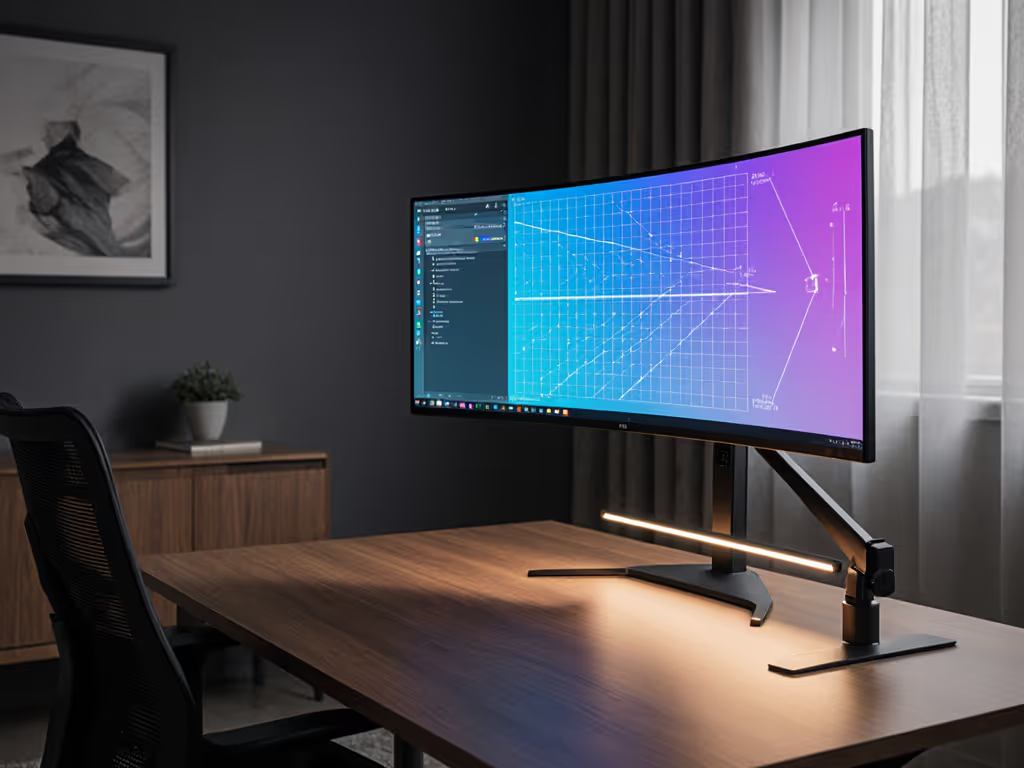
For dual monitor setups, use independent task lighting to eliminate shadows created by your left hand's natural positioning. Adding gentle bias lighting behind your displays can further reduce eye strain and improve perceived contrast. This small adjustment prevents the eye strain that left-handed users often misattribute to screen brightness.
Testing Your Left-Handed Ergonomic Setup
The 20-20-20 Validation Method
Before declaring your left-handed monitor setup complete, run this validation:
- Work normally for 20 minutes
- Check for any neck twisting or wrist extension
- Repeat every 20 work minutes for one hour
If you notice any of these warning signs, adjust incrementally:
- Frequent neck turning → shift monitor slightly rightward
- Left shoulder tension → lower monitor height by 2-3 cm (1 inch)
- Mouse reach strain → extend mouse platform forward
The Paper Test for Neutral Posture
Place a sheet of paper where your monitor currently sits. Reposition your monitor until:
- Your left hand rests comfortably on your mouse
- Your right hand rests naturally on your keyboard
- Your eyes fall on the paper without neck rotation
This simple test reveals whether your monitor position serves your natural asymmetry or fights against it. Most left-handed users find their "ideal" position 5-10 cm (2-4 inches) right of center.
Common Left-Handed Setup Mistakes to Avoid
The Centered Monitor Trap
Many left-handed users mistakenly position their monitor dead center (a vestige of right-handed design standards). This forces constant neck rotation that compounds into chronic strain. Your monitor should follow your mouse, not your spine's center line.
Overcompensating with Tilt
Left-handed users often tilt monitors excessively to the left to compensate for improper positioning. This creates visual distortion and uneven eye strain. Instead, adjust your monitor's horizontal position, and tilt should be minimal (0-5 degrees).
Ignoring Document Flow
When taking notes or referencing physical documents, left-handed users create natural smearing patterns. Position your document holder between keyboard and screen but slightly rightward to accommodate your natural writing arc without obstructing your view.
Future-Proofing Your Southpaw Workspace
As your tools evolve, your health-focused southpaw setups should adapt without complete overhaul. Build flexibility into your system:
- Choose monitor arms with modular expansion for future secondary displays
- Select desks with left-side cable ports specifically for southpaw workflows
- Opt for keyboards with repositionable number pads as your needs change
Your workspace should grow with you, not against you. With the right foundation, upgrading components won't mean relearning your entire workflow.
Small Adjustments, Big Outcomes
I've seen left-handed professionals transform chronic discomfort into sustainable productivity through thoughtful left-handed monitor setup refinements. That early career experience with mismatched monitors taught me: ergonomics isn't about rigid rules, it is about understanding your body's unique geometry. When you position your monitor around your natural reach arcs rather than fighting against them, you're not just preventing strain; you're building a foundation for sustained focus and precision.
Start today with just one adjustment: shift your primary monitor 5-8 cm (2-3 inches) to the right of center. Notice how your neck tension eases as your eyes naturally fall on your screen without rotation. Then fine-tune from there. Remember that small adjustments, big outcomes applies doubly to left-handed users, and millimeters of positional refinement create exponential comfort gains.
Your next step: spend five minutes mapping your natural hand positions while working. Where does your left hand rest when active? Where does your right hand fall when idle? These subtle cues reveal exactly where your monitor belongs (not where "standard" guidelines say it should be). When your screen follows your body's natural asymmetry, you'll work smarter, longer, and with greater joy.
Related Articles