Best E-Ink Monitor Accessories Setup
By Sofia Jimenez • 12th Apr
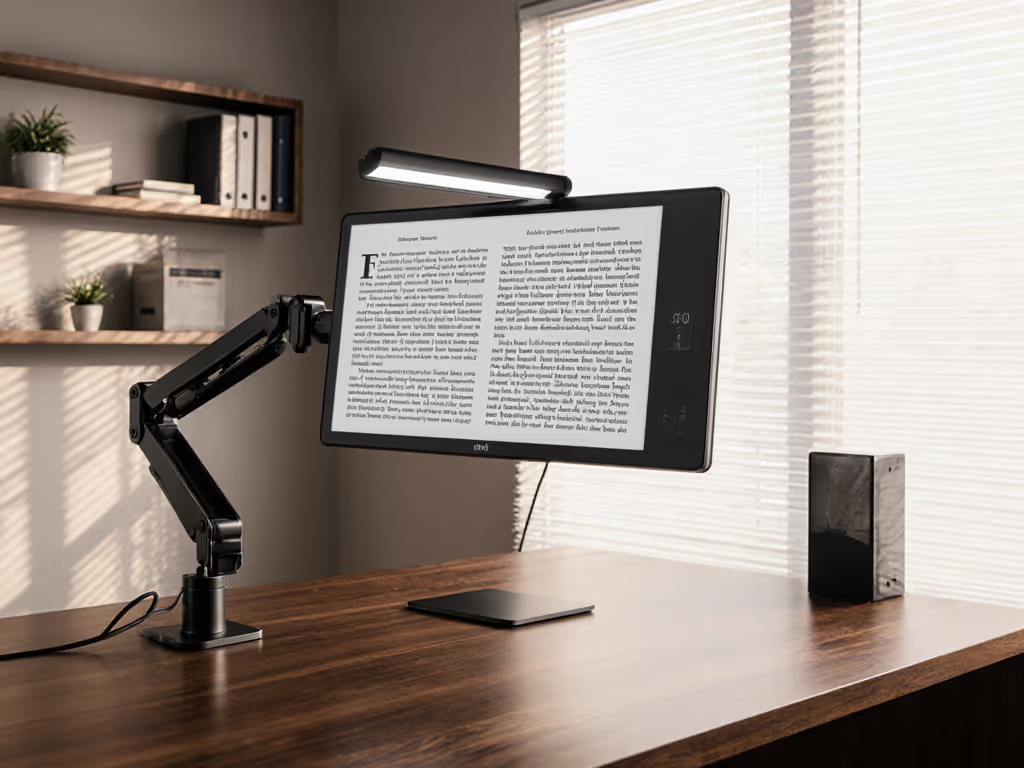
When I shipped three returns in a single week (a dock that underpowered my 144Hz monitor, an arm that scraped the shelf, and a cable that couldn't handle the display protocol I needed), I realized my mistake wasn't the gear. It was skipping the preflight.
Today, I help people avoid that cycle. E-ink monitor accessories aren't just about aesthetics; they're about working with your eyes at ease, your power budget matched perfectly, and your desk geometry locked in before you buy anything. This guide walks you through a measurement-first setup that prevents surprise incompatibilities, returns, and the frustration of gear that almost works.
Start with a preflight, end with a first-time fit. As part of preflight, confirm your VESA mount compatibility to avoid arm mismatch.
Why E-Ink Monitor Accessories Matter
E-ink displays (low-power display solutions that mimic paper) have moved beyond e-readers. Developers, writers, and remote workers now use e-ink monitors as secondary displays for code, documentation, or focus work. But buying the display alone isn't enough. The real challenge is the ecosystem: the monitor arm, cable standards, power delivery, and desk geometry that let you use it safely and comfortably.
This is where most people stumble. They buy a stunning e-ink display, then discover:
- The VESA pattern doesn't match their arm.
- The standing desk clamp won't fit their desk thickness.
- The USB-C dock doesn't deliver enough power.
- The cable spec doesn't support their resolution refresh rate.
Each problem triggers a return. Measure once properly, install once, and avoid all three.
Step 1: Measure Your Desk and Mounting Constraints
Before touching a single product link, measure your workspace. This takes five minutes and saves weeks of back-and-forth.
Your Desk Geometry Checklist
- Desk thickness: Measure from the top surface to the underside at the edge where you'll clamp. If you have a standing desk, measure at both the lowest and highest positions. Clamps typically fit 0.75 to 3 inches; too thin or too thick, and you'll need an adapter (which adds cost and safety risk).
- Usable overhang: How far can you extend past the desk edge without tipping a heavy arm? Standing desks with light bases are more precarious. Aim for at least 6 inches of overhang for a monitor arm without creep over time.
- Desk depth behind the screen: E-ink monitors are lighter than LCD panels, so they can live on shallow desks. Measure from the clamp point back to your keyboard. Typical setup needs 24 to 30 inches; if you have less, you'll either mount the display at an awkward angle or lose desk real estate.
- Cable routing: Is there a crossbar, cable tray, or monitor stand in the way? Take a photo of your desk profile from the side. This prevents surprises later.